Need Help with a Mass Update Process?
One-on-one support is available to help you navigate the system seamlessly. We can review everything from A to Z, including:
Access: How to access the file templates and confirm access setup
Completion: Walk through how to complete file templates accurately
File Review: Which mass update file process best fits your needs
Process Walkthroughs: Understanding the end-to-end lifecycle of a mass update.
Troubleshooting: Reviewing and resolving errors from previously submitted files.
🗓️ How to Book a Session
Navigate to the QuickLinks section.
Click the Scheduling Box to select a date and time that works best for you.
⚠️ Escalated Requests: If you have an urgent or escalated issue, please email ucpathcsc@ucr.edu directly so we can accommodate you quickly.
Mass Update Quicklinks
Mass Update Overview
Mass updates in UCPath allow administrators to apply changes in bulk, within the UCPath system. These mass update processes support various UCPath transactions, including: hiring, position changes, job data changes, and salary increases.
File Considerations:
- Utilize the appropriate template(s) designated for the desired update
- File submission must be in the required file type (e.g., CSV, XLSX)
- Follow the guidelines set (reference CSC Mass PayPath refresher or UCPath Job Aids)
- Check Payroll Processing Schedule
- Mass Update processing follows all payroll blackout periods, regardless of the pay cycles of the employees submitted on the file
Mass Update Handling
Each mass update is currently handled differently, as are the SLA for each processing step. See guidance below:
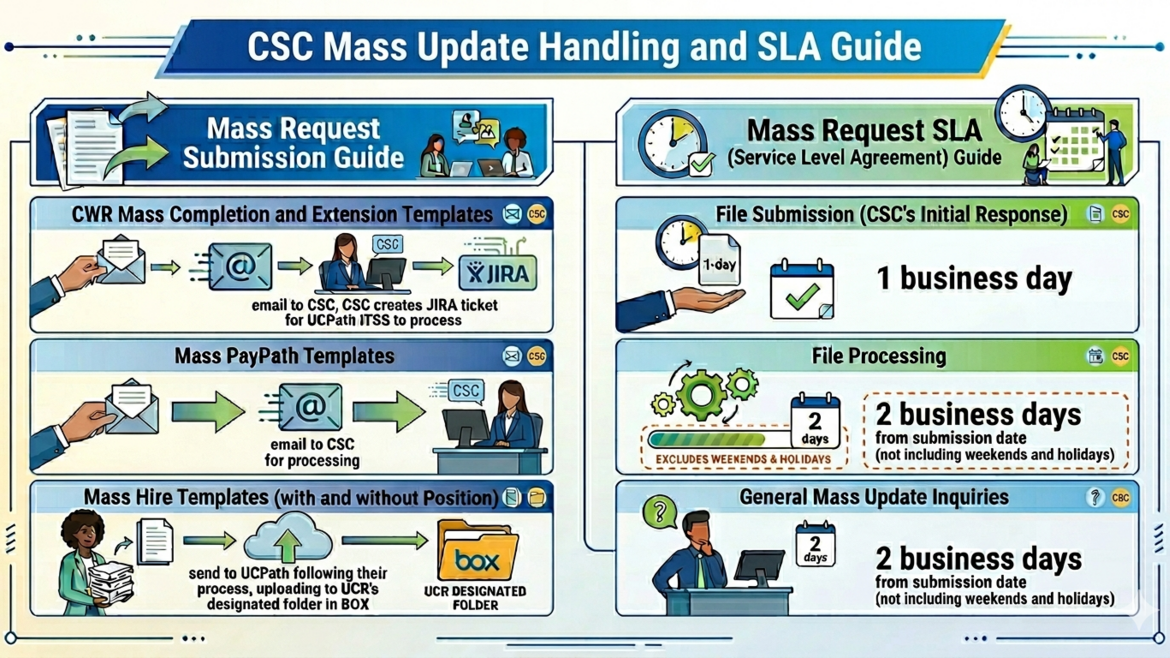
Types of Mass Update Process
Mass PayPath Process
-
Mass PayPath Overview
Mass PayPath, also known as E-081, update is a custom process enables multiple PayPath transactions to be submitted to UCPath via CSV file. This tool enhances the UCPath PayPath Actions page, utilizing the same codes and values that a user would input directly on the page, allowing for bulk updates to position, job, and additional pay for existing employees.
-
Mass PayPath Process Steps
PROCESS STEPS
- Download the template (this link goes directly to the UCPath Location Support site that has the most up-to-date CSV templates)
- Select the Mass Update for WFA Data Changes (Batch File).csv file
- Review the Job Aid: Complete the CSV File Template for PayPath Actions
- Complete the template
- The three sections represent the 3 tabs in the PayPath module
- Not all fields need to be completed for each type of PayPath; DO NOT delete unused fields or rows
- Pay special attention any time you need to reference the Employee Record Number; you want to make sure you are referencing the correct job
- Do not use this template to add Additional Pay
- Reference the sample rows in the template
- Save the template
- Follow the mandatory naming convention: RVCMP_E081_OptionalShortDescription_YYYYMMDD
- Save the template in an Excel file type (.xlsx) first, with applicable formatting applied
- Then save the saved Excel file as a CSV file. Formatting will remain intact.
- Upload to CSC via the CSC Mass Update File Submission Form
- Mass PayPath SLA:
- Submit no later than 1 day before the PayPath payroll deadline* you wish to impact.
- For requests to extend the end date, submit no later than 3 days before the job record's end date*
- For extensions, the last day to extend an appointment is the day before the end date. Please consider this when submitting your request.
CONSIDERATIONS:
- Larger files may take longer to review.
- Allow time for corrections to be applied before payroll processing deadlines, as needed, to correct any file errors or if any records do not process with no errors.
- CSC does not review files to validate data input, but rather that the headers, formatting, and required information are all present to allow for a successful upload.
*We cannot guarantee that any files submitted past the noted deadline will be processed in time for the payroll deadline. Currently, PayPath files require 2 users for the review and upload process.
- Download the template (this link goes directly to the UCPath Location Support site that has the most up-to-date CSV templates)
-
Mass PayPath File Template
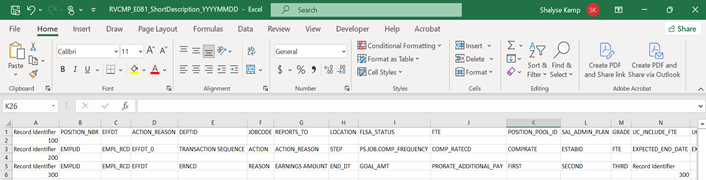
The CSV File Template for Mass Update of PayPath Actions to UCPath is designed to update the Position.
Data, Job Data, and Additional Pay records in UCPath. The template has three header rows that must not be deleted:
- The first header row is for the Position Data record. See row 1 in the example shown below.
- The second header row is for the Job Data record. See row 2 in the example shown below.
The third header row is for the Additional Pay record. See row 5 in the example shown below.
Example CSV File Template with the Three Header Rows
-
Mass PayPath CSV File Template Guidelines
Template Guidelines
Use the following guidelines when entering data in the CSV File Template for Mass Update of PayPath Actions to UCPath:
- Go to the Location Support Site to obtain the latest version of the CSV file template.
- Ensure the most up-to-date Mass Update for WFA Data Changes (Batch File) template is being used
- Do not change the CSV file template format.
- Do not change or delete the CSV file template header rows.
- Only insert data rows under the applicable CSV file header row(s) for the records you want to update in UCPath.q
- Note that rows are loaded into UCPath in the order specified on the CSV file.
- Do not use commas, dashes, or slashes in the CSV file.
- Save the CSV file using the following naming convention, with no spaces: BusinessUnit_E081_ShortDescription_YYYYMMDD
- Example: RVCMP_E081_MASSUPDATEPAYPATH_20240722
- Ensure that codes/values specified on the file are active for the effective dates used; Effective-date logic is enforced when the CSV file is submitted for processing.
- Do not use leading zeros in CSV file columns if the leading zeros are not part of the code/value. CSV File template fields must be formatted as text fields to eliminate leading zeros, where not applicable.
Other File Considerations
- UCPath Payroll Processing Dates: Check the UCPath Processing Schedule Calendar. To avoid disrupting payroll cycles, Mass PayPath files are not processed during payroll "blackout" periods.
- Use Valid codes: Users must use valid UCPath codes for various fields, which can be found in resources like DDODS (Data Dictionary and Online Services).
- Duplicate Entries: Check file to confirm a Position and/or employee are entered once in a single file. If an employee is entered more than once in a single file, it must be for different active employee records.
- Go to the Location Support Site to obtain the latest version of the CSV file template.
Mass Hire Process
-
Mass Hire Overview
Mass Hires is a custom process (E-346) in UCPath that enables Locations to process mass hires, minimum of 10 hires per file, for employees and contingent workers.
The Mass Hires process is also referred to as the Batch Hires process. The Mass Hires process uses a comma-separated values (CSV) file template that Locations populate with relevant hire data and submit to UCPath for processing.
UCPath Production validates the CSV file transaction data (formatting) prior to loading it into UCPath.
-
Mass Hire Process: When to Use vs When Not to Use
When to Use Mass Hires File Templates
Use the CSV File Templates for Mass Hires to:
- Process hires of 10 or more employees and/or contingent workers
- Including employees or hires with Multiple Components of Pay (MCOP) and Job Earnings Distribution (JED)
- Create an additional employment or contingent worker instance for an existing Empl ID
When Not to Use Mass Hires File Templates
Do not use the CSV File Templates for Mass Hires to:
- Update existing personal data (Use a Smart HR Template)
- Rehire or transfer people into existing employee records (Use a Smart HR Template)
- Hire employees or Contingent Workers (CWR) with a global address (Use a Smart HR Template)
- Terminate employees (Use a Smart HR Template)
- Correct previously submitted and processed Mass Hires data (Use PayPath)
- Update/create Additional Pay (Use PayPath)
- Resolve Fair Labor Standards Act (FLSA) incompatibility issues (Use PayPath)
- Add a Person of Interest (Use Person of Interest - Add)
- Process pay group overrides or compensation overrides for hard-coded job codes (Use a Smart HR
Template)
- Process hires of 10 or more employees and/or contingent workers
-
Mass Hire File Template
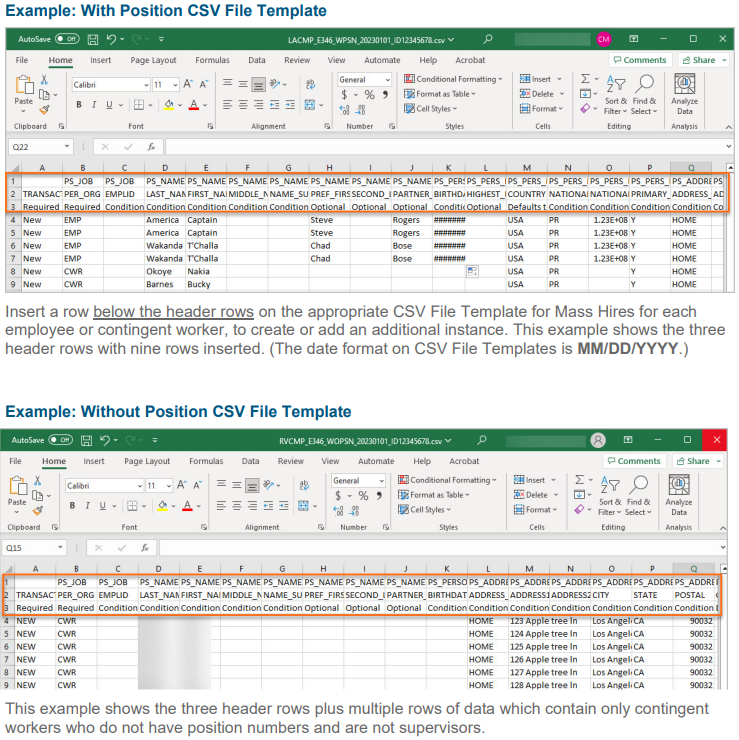
There are two CSV File Templates for Mass Hires. Select the appropriate CSV File Template to use for each upload:
- Use the With Position Template to load employees and/or contingent workers with positions
- All employees require an existing position
- Contingent workers who are supervisors must have a position
- Use the Without Position Template to load contingent workers without positions
Each template has three header rows. Enter the mass hire data below the header rows. Do not delete or modify the template header rows. Refer to the following example images when reading the next
three bullets.- Header Row 1: Indicates the UCPath record for the related fields listed on header row 2
- Header Row 2: Indicates the UCPath field for the related records listed on header row 1
- Header Row 3: Indicates whether the cell is required, optional or conditional on the template
Conditional fields may rely on the input provided in associated fields
- Use the With Position Template to load employees and/or contingent workers with positions
-
Mass Hire File Template Guidelines
There are formatting and restrictions that must be considered and applied in order for the file to be uploaded to the system and processed successfully.
For the latest file requirements, formatting, character restrictions, and file submission checklist, please review the Complete the CSV File Templates for Mass Hires Job Aid.
Mass CWR Completions and Extensions Process
-
Mass CWR Completions and Extensions Overview
The UCPath CWR Expired End Date Updates template is an Excel to CI process that allows for multiple Contingent Workers to be submitted to UCPath via CSV file. This template tool allows for bulk Completion and Extension action requests to be processed en masse.
-
Mass CWR Completions and Extensions Process Steps and File Template Guidelines
PROCESS STEPS
- Download the CWR Mass Update BRD Template
- Complete the template
- File can be completed with any mixture of Completion (COM) or Extension (CWE) actions
- Complete the following fields, or UCPath will not process it:
• Employee ID
• Employee Record
• Effective Date
• Action
• Reason
• Expected Job End Date- NOTE: The Expected Job End Date is required when using the mass option, and it can be the same as the effective date
- Save the template as an Excel (.xlsx) file type
- Submit the file to CSC via Request Form: CSC Mass Update File Submission Form
- NOTE SLA:
- The UCPath ITSS team processes the CWR Mass Update requests
- CSC communicates the requests via JIRA ticket creation
- There is no expected SLA in the processing. Status updates will be provided on a biweekly basis
Mass Vacant Position Inactivation
-
Mass Vacant Position Inactivation Overview
The Mass Inactivate Vacant Positions process allows UCPath locations to submit mass deactivation requests for inactive Position Control Numbers (PCNs). To prevent downstream payroll or benefits issues, positions must be fully vacant, without active employee attachments or active funding allocations.
-
Mass Vacant Position Inactivation Requirements & Exclusions
Positions must be vacant with no active employees or funding tied to them to eliminate the risk of downstream benefits or payroll impacts.
- Validate that the positions are vacant
- Ensure the positions are inactive and not actively being recruited on
- Ensure the Worksite ID is populated on the requested positions in the template
The following types of positions may not be inactivated within this process:
- Filled positions or positions scheduled to be filled as of the requested effective date
- Positions with future-dated rows after the requested effective date
-
Mass Vacant Position Inactivation Template Guidelines
To process, complete the POSN Mass Inactivation BRD Template with the positions to be deactivated. Upload to CSC via the CSC Mass Update File Submission Form. CSC will send the file to UCPath for processing via a JIRA ticket and provide an update, once one is received.
Complete the following parameters when submitting the mass inactivation request:
- Position Number: Enter the 8-digit position number
- Effective Date: Enter the effective date (MM/DD/YYYY) that the position is to be inactivated
- Position Status: Enter I
- Reason Code: Enter INA